How To Create Multi-Color 3D Prints
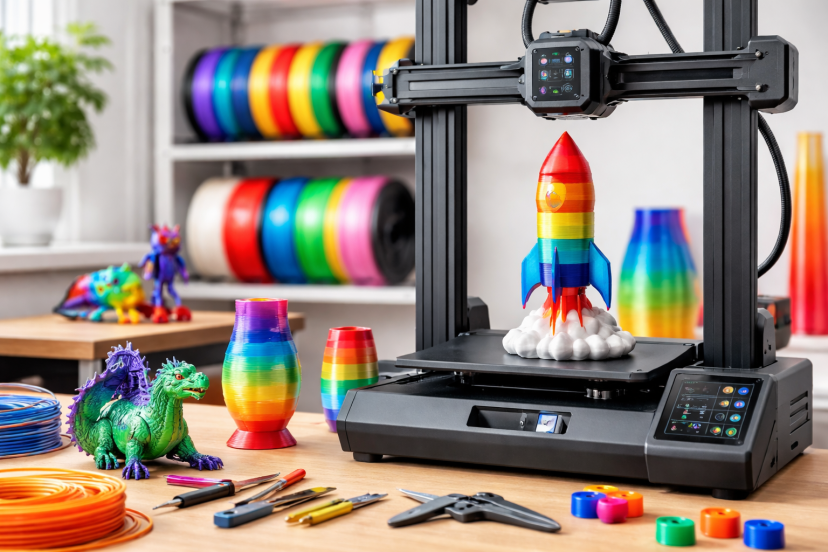
Multi-color 3D prints make your projects stand out instantly. Instead of plain, single-color models, you can create parts that look more detailed, realistic, and professional. You can get started without investing in costly equipment. With the right tools and a few simple techniques, anyone—from beginners to experienced hobbyists—can produce clean, vibrant multi-color results at home.
Why Multi-Color 3D Printing Is So Popular Today
Color transforms a print from functional to visually striking.
Think about it. A plain gray figurine works fine. But the same model printed in multiple colors suddenly looks finished, detailed, and professional.
There are several reasons why multi-color printing keeps growing in popularity:
- It improves realism
- It reduces post-processing work
- It enhances product presentation
- It increases customization options
- It boosts creativity
Most importantly, modern printers make color printing easier than ever before. What once required expensive equipment can now be done at home with basic tools.
Understanding How Multi-Color 3D Prints Work
At its core, multi-color printing is simply controlling when and where different materials are used during a print.
The printer switches colors at specific layers or sections of the model. That change can happen automatically or manually, depending on the method you choose.
Common approaches include:
- Switching filament mid-print
- Using multiple extruders
- Printing separate parts and assembling them
- Painting after printing
Each method has advantages. The best choice depends on your printer, budget, and project goals.
Single Nozzle vs Multi-Material Systems
Before diving into techniques, it helps to understand the hardware differences.
Single Nozzle Printers
Most hobbyists use single-nozzle machines. These printers can still produce multi-color prints by swapping filament during printing.
Benefits:
- Affordable
- Easy to maintain
- Beginner-friendly
Limitations:
- Manual intervention required
- Slower color changes
Multi-Extruder Printers
These machines use two or more nozzles.
Benefits:
- Automatic color switching
- Faster workflow
- More complex designs
Limitations:
- Higher cost
- More maintenance
For many hobbyists, a single-nozzle printer is perfectly capable of producing impressive multi-color results.
The Most Common Ways to Create Multi-Color 3D Prints
There isn’t just one method. Several techniques work well depending on your setup.
Filament Swapping
This is the simplest method.
The printer pauses at a specific layer, allowing you to change filament manually.
Best for:
- Text labels
- Logos
- Layered designs
- Beginner projects
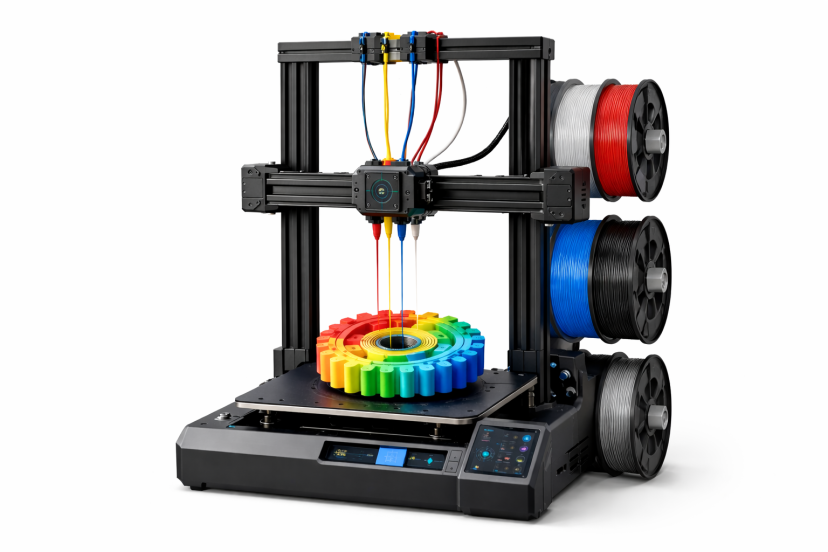
Multi-Extruder Printing
This method uses multiple nozzles loaded with different colors.
Best for:
- Complex models
- High-detail prints
- Frequent color changes
Post-Processing and Painting
Sometimes, printing in one color and painting afterward produces the best result.
Many experienced makers rely on this approach, especially for detailed models. If you plan to paint your prints, choosing the right coating matters. When you want your prints to look polished and hold up over time, read our guide on the best paint for 3D prints.
Painting offers flexibility, precision, and professional-looking results.
Choosing the Right 3D Printer for Multi-Color Projects
Not every printer handles multi-color printing the same way.
Here are key features to look for:
- Reliable temperature control
- Accurate layer alignment
- Stable build platform
- Compatible firmware
- Good filament handling
Popular beginner-friendly options often include automatic pause features, which make filament swapping much easier.
Best Filaments for Multi-Color Printing
The material you use affects both color quality and print consistency.
Common choices include:
PLA
Most popular option.
Why people love it:
- Easy to print
- Wide color variety
- Minimal warping
- Affordable
PETG
Great for stronger parts.
Benefits:
- Durable
- Flexible
- Glossy finish
- Moisture-resistant
Silk PLA
Ideal for decorative prints.
Advantages:
- Shiny appearance
- Smooth surface
- Vibrant colors
Essential Software for Designing Multi-Color Models
Software controls how colors appear in your final print.
Popular tools include:
- Cura
- PrusaSlicer
- Bambu Studio
- Tinkercad
- Fusion 360
These programs allow you to:
- Assign colors to specific layers
- Split models into separate parts
- Preview color transitions
- Optimize print settings
Even beginners can learn these tools quickly.
Step-by-Step Guide to Creating Multi-Color 3D Prints
Here’s a simple workflow that works well for most hobbyists.
Step 1: Design Your Model
Create your model using CAD software or download a ready-made design.
Step 2: Choose Color Layers
Decide exactly where you want the color changes to appear in the print.
Step 3: Slice the Model
Use slicing software to prepare the file and set your print settings.
Step 4: Insert Pause Commands
Program the printer to pause at specific layers so you can switch filament colors.
Step 5: Start Printing
Begin the print and keep an eye on it during color transitions.
Step 6: Finish and Inspect
Once the print is complete, check the alignment and make sure the colors look clean and accurate.
With practice, this process becomes quicker and more predictable.
How to Avoid Color Bleeding and Layer Mixing
Color bleeding is a common issue in multi-color printing, but it’s usually easy to control with the right settings.
Use Proper Temperature Settings – Excessive heat can cause colors to blend together. Lowering the temperature slightly often improves separation between colors.
Increase Retraction Distance – More retraction helps stop filament from leaking during color changes.
Adjust Print Speed – Printing a bit slower gives the printer better control and improves precision.
Use Purge Towers – Purge towers clear leftover filament from the nozzle before switching colors, which helps keep transitions clean.
Even minor changes can noticeably improve the quality of your prints.
Tips for Cleaner, More Vibrant Multi-Color Results
Experienced makers follow a few simple habits to keep their prints looking sharp.
Keep Filament Dry – Moisture can weaken prints and dull colors. Store filament in a dry container when not in use.
Clean the Nozzle Regularly – Residue buildup can mix colors and reduce detail, so routine cleaning is important.
Use High-Quality Filament – Better materials produce stronger layers and more consistent color.
Calibrate the Printer – Proper calibration ensures accurate alignment and smoother color transitions.
These simple steps help your multi-color prints look cleaner, brighter, and more professional.
When Painting Is the Better Option
Sometimes, printing multiple colors isn’t necessary.
Painting can be faster and more precise.
It works especially well for:
- Miniatures
- Figurines
- Decorative models
- Prototypes
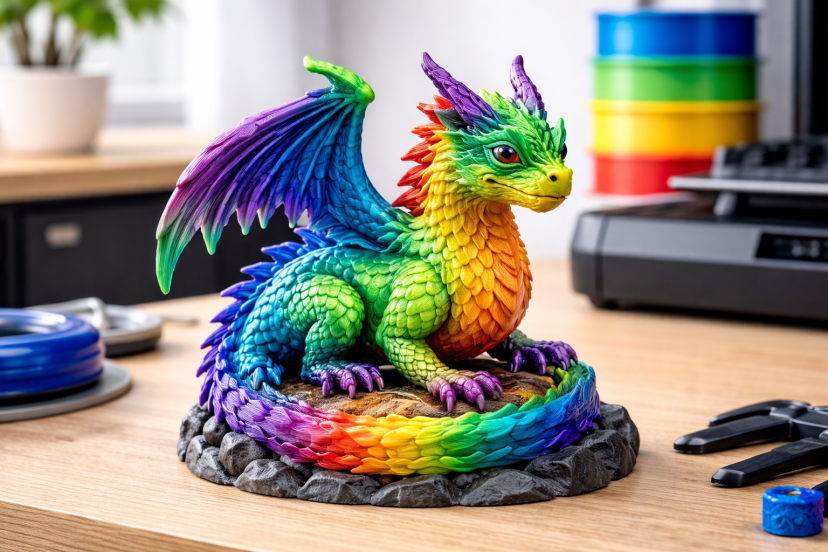
Many professionals print in one color and paint afterward because it offers more control over shading, texture, and finish.
Maintenance Tips for Multi-Color Printing Success
Regular maintenance helps prevent most printing problems and keeps color changes clean and consistent.
Clean the Build Plate – Remove dust and residue so prints stick properly from the first layer.
Check Nozzle Wear – Worn or clogged nozzles can cause uneven flow and messy color transitions. Replace them when print quality drops.
Inspect Filament Paths – Make sure filament feeds smoothly. Blockages or tangles can lead to gaps or mixed colors.
Update Firmware – New updates often improve stability and performance, especially for multi-color printing.
Simple maintenance saves time, reduces failed prints, and keeps your results looking sharp.
Common Mistakes Beginners Should Avoid
Everyone makes mistakes when starting out. The key is learning quickly.
Here are the most common ones:
- Printing too fast
- Using incorrect temperatures
- Ignoring calibration
- Mixing incompatible materials
- Skipping test prints
Avoiding these issues improves reliability immediately.
Recommended Products
Here are practical tools that help produce better multi-color prints.
1. Creality Ender 3 V3 SE 3D Printer – Reliable, beginner-friendly printer with strong community support.
2. Creality CFS 16-Color Filament System – Automatically switches between multiple filaments during printing.
3. Hatchbox PLA Filament Bundle – Consistent colors and dependable performance.
4. SUNLU Filament Dryer Box – Prevents moisture problems that affect color quality.
5. Nozzle Cleaning Kit for 3D Printers – Helps maintain smooth extrusion and color transitions.
Why Material Choice and Printer Setup Matter for Reliable Multi-Color Prints
If you’ve ever printed something that looked great in your slicer but came out with rough layers or messy color lines, you’re definitely not alone. In many cases, the issue comes down to materials and printer setup.
A widely cited review of additive manufacturing materials and methods shows that 3D printing can produce strong, detailed parts when the right materials and settings are used. In other words, your filament choice and calibration routine matter more than most people realize.
Another important finding from a systematic review of multi-material FDM 3D printing systems highlights that strong bonding between layers is key to making prints durable and reliable—especially when working with multiple colors. The study also points out that both single-nozzle and multi-nozzle printers can deliver great results once they’re properly tuned.
The takeaway is simple: clean, reliable multi-color prints usually come from dialing in the basics. Use good materials, keep your printer maintained, and make small adjustments when needed. Simple tweaks often lead to the most meaningful improvements.
Final Thoughts
Creating Multi-color 3D prints doesn’t have to be complicated. With the right setup, good materials, and a bit of practice, you can produce clean, professional-looking results at home. Start simple, fine-tune your settings, and build confidence with each project. Over time, those small improvements will lead to better prints and more creative possibilities.
FAQs
What is the easiest way to create multi-color 3D prints?
Filament swapping is the simplest method. Most beginner printers support pause commands that allow manual color changes during printing.
Do I need a multi-extruder printer for multi-color printing?
No. Many hobbyists create multi-color prints using single-nozzle printers by switching filament at specific layers.
Can beginners create multi-color prints successfully?
Yes. With basic equipment and simple techniques, beginners can produce impressive results within a few attempts.
What filament works best for multi-color printing?
PLA is the most beginner-friendly option because it prints easily and comes in many colors.
Is painting better than multi-color printing?
It depends on the project. Painting offers more control for detailed models, while multi-color printing saves time for simple designs.