What Is A Good 3D Printing Speed?
Your slicer says a model will take six hours to print. You increase the speed, hoping to finish sooner, but the result comes out with rough walls and uneven layers. Sound familiar? Finding the right 3D printing speed can make a big difference in how your prints look and how reliably your printer runs.
For many traditional hobby printers, 40–60 mm/s is a reasonable starting point. Modern high-speed machines can print much faster, but the right setting depends on your printer, filament, and model.
Here’s how to find a speed that saves time without ruining your prints.
What Does 3D Printing Speed Mean?
3D printing speed describes how quickly the printhead moves while depositing filament. Most slicers measure it in millimeters per second (mm/s).
For example, a speed of 60 mm/s means the nozzle moves 60 millimeters each second while extruding material, provided the printer can reach that speed.
However, the number you enter isn’t necessarily the speed your printer maintains throughout the job.
Corners, small details, acceleration limits, and cooling requirements often make it slow down.
Also, print speed differs from travel speed. Travel speed controls how quickly the nozzle moves between areas without depositing plastic.
What Is a Good 3D Printing Speed for Beginners?
If you’re starting with a typical FDM printer and PLA filament, 50 mm/s is a practical baseline.
It’s fast enough for everyday projects while leaving some room for adjustments.
Here’s a general comparison for PLA printing:
| Printer Setup | Suggested Starting Range |
| Traditional hobby FDM printer | 40–60 mm/s |
| Well-tuned hobby printer | 80–150 mm/s |
| Modern high-speed printer | 150–300 mm/s or higher |
These ranges aren’t universal limits. Actual performance depends on the printer’s motion system, hotend, and filament.
If your printer already includes a reliable manufacturer profile, start there instead of replacing its settings with generic numbers.
Recommended 3D Printing Speeds by Filament Type
Different filaments behave differently when heated and pushed through a nozzle.
The following speeds are conservative starting ranges for conventional hobby FDM printers, not maximum limits.
| Filament | Starting Print Speed |
| PLA | 40–70 mm/s |
| PETG | 30–60 mm/s |
| ABS | 40–70 mm/s |
| TPU | 15–30 mm/s |
| ASA | 40–70 mm/s |
| Nylon | 30–60 mm/s |
PLA
PLA is often the easiest material for speed testing. It generally melts and flows predictably, making it suitable for beginners.
PETG
PETG can produce strong, durable parts, but excessive speed may contribute to poor bonding or inconsistent extrusion. Start conservatively and increase gradually.
TPU
Flexible TPU usually needs slower printing, especially with Bowden extruders. Pushing it too quickly can cause feeding problems.
These guidelines apply mainly to standard setups. Modern high-flow printers and specialized filaments may support significantly higher speeds.
What Factors Affect 3D Printing Speed?
Several printer settings and mechanical limitations determine how quickly you can print successfully.
Hotend and Filament Flow
Your hotend must melt enough plastic to keep up with the nozzle.
For example, a 0.45 mm extrusion width at 0.2 mm layer height requires approximately 9 mm³ of plastic per second at 100 mm/s. Doubling the speed doubles that demand.
Prusa’s guide to maximum volumetric speed explains how slicers limit movement when a hotend cannot reliably supply the requested amount of melted filament.
Acceleration and Printer Stability
Acceleration determines how quickly the printhead reaches its target speed.
A printer may handle 200 mm/s on long, straight sections but never reach that speed on a tiny model.
Excessive acceleration can also cause vibrations, ringing, and layer shifts.
Cooling and Layer Height
Faster printing gives freshly deposited plastic less time to cool. Small details and overhangs may suffer as a result.
Layer height matters, too. Thicker layers require more melted filament per second at the same movement speed.
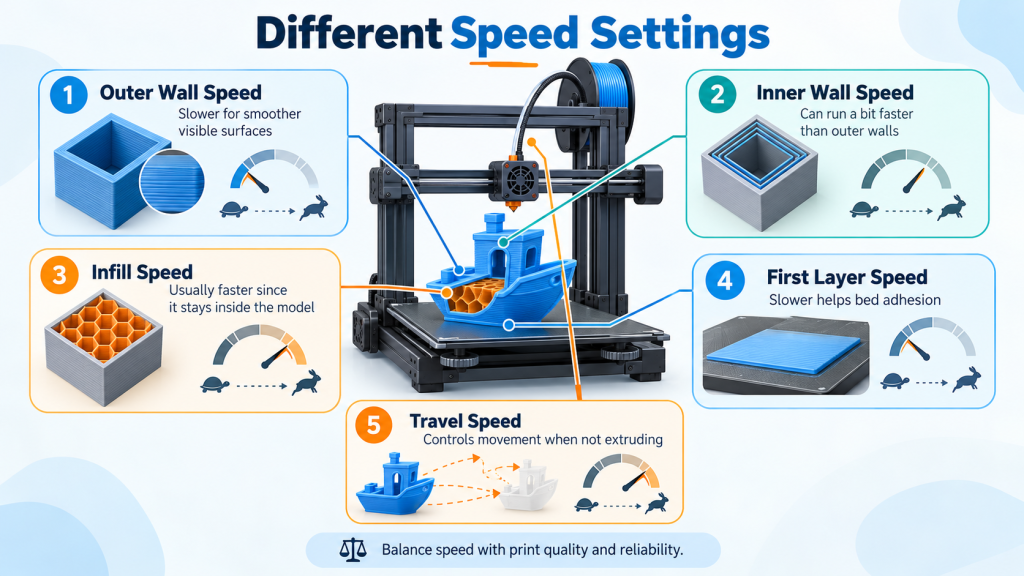
Understanding Different Speed Settings
Your slicer usually offers several speed controls rather than one universal setting.
- Outer wall speed: Slower movement helps improve the visible surface.
- Inner wall speed: Can often run faster than outer walls.
- Infill speed: Higher speeds may work because interior surfaces are less visible.
- First layer speed: Slower printing helps the filament establish reliable bed adhesion.
- Travel speed: Controls non-printing movement between sections.
UltiMaker’s detailed explanation of Cura speed settings describes how these adjustments affect surface finish, adhesion, and printing time.
For a conventional PLA setup, try an initial layer around 20 mm/s and outer walls around 30–40 mm/s, then adjust based on your results.
How to Find the Best Speed for Your Printer
Instead of copying an unusually fast profile from someone else’s machine, test what your printer can actually handle.
- Start with a reliable profile. Use your manufacturer’s recommended PLA settings or a proven slicer preset.
- Print a calibration model. Choose a small object with straight walls, corners, and fine details.
- Increase speed gradually. Try modest changes, such as moving from 50 to 60 mm/s.
- Inspect each result. Look for ringing, gaps, rough surfaces, and inconsistent corners.
- Check extrusion limits. Make sure the hotend can supply enough material at the new speed.
- Save successful settings. Keep separate profiles for different filaments and quality requirements.
Adjust one key setting before moving on to the next. Otherwise, you may struggle to identify what improved or damaged the print.
The fastest successful calibration print isn’t necessarily the best choice for every project.
How to Increase 3D Printing Speed Without Losing Quality
Increasing nozzle movement isn’t the only way to shorten a print.
Try these adjustments:
- Use a suitable layer height. Thicker layers reduce the number of layers needed, although they increase flow demand.
- Reduce unnecessary supports. Change the model’s orientation to minimize support material.
- Optimize infill. Choose a suitable pattern and avoid excessive density.
- Tune acceleration. Higher acceleration can help on shorter movements when your printer supports it.
- Consider a larger nozzle. A compatible 0.6 mm nozzle can reduce printing time for some larger models.
Don’t sacrifice wall thickness or required infill strength just to finish a functional part faster.
Signs Your 3D Printing Speed Is Too High
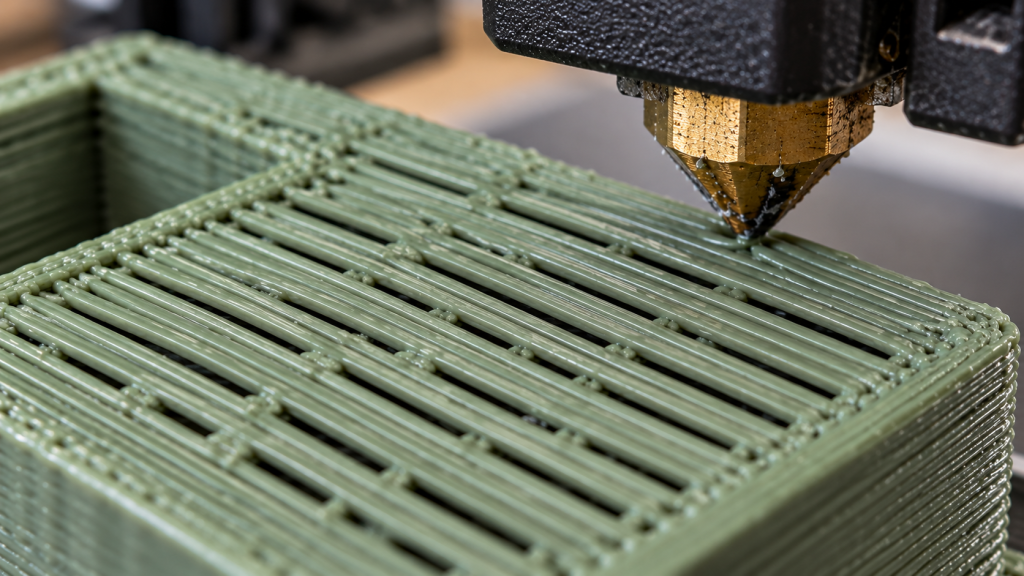
Your printed model often tells you when something is wrong.
Watch for these warning signs:
- Ringing or ghosting near sharp corners
- Gaps between extrusion lines
- Weak bonding between layers
- Rough or uneven surfaces
- Layer shifts
- Drooping overhangs
- Clicking from the extruder
Some problems have several possible causes.
For example, stringing can involve travel settings, filament moisture, or temperature rather than printing speed alone. Our guide to reducing 3D printer stringing explains how to identify those issues.
Recommended Products
A few well-chosen accessories and materials can help you experiment with faster printing. Check printer compatibility before ordering.
1. Creality Hyper PLA Filament – Designed for high-speed 3D printing, this PLA is worth considering when testing faster profiles on compatible printers.
2. SUNLU High Speed PLA Filament – This filament targets faster printing applications. It offers another option for testing whether your machine can maintain consistent extrusion at higher movement speeds.
3. Bondtech CHT MK8 0.6 mm Nozzle – This high-flow nozzle helps improve filament melting capacity. It may benefit compatible printers limited by extrusion flow. Confirm the nozzle thread, length, and hotend compatibility first.
4. Creality Space Pi Filament Dryer – Moist filament can produce inconsistent extrusion and rough surfaces. This dryer helps prepare moisture-sensitive spools before testing faster settings.
5. SUNLU PLA Meta Filament – PLA Meta offers another material option for calibration. Its flow characteristics make it useful for comparing results against your usual PLA filament.
Conclusion
A good 3D printing speed is one your printer can maintain without compromising the finished model. For traditional hobby printers, 40–60 mm/s is a sensible starting range, while properly equipped modern printers can go much faster. Start with a reliable profile, increase speed gradually, and judge the results instead of chasing the highest number. A clean, successful print is worth more than a fast failed one.
FAQs
What is the best 3D printing speed for PLA?
Around 40–70 mm/s works as a starting range for many conventional FDM printers. Modern high-speed machines can print PLA considerably faster when their hotend, cooling system, and filament support it.
Is 100 mm/s fast for 3D printing?
For an older hobby printer, 100 mm/s may be relatively fast. Many newer printers handle that speed comfortably. Actual print time still depends on acceleration, geometry, and extrusion limits.
Will my prints look worse if i increase the speed?
Yes. Printing too quickly may lead to uneven surfaces, visible imperfections, or weaker layers.
What is a good first-layer printing speed?
For a traditional PLA setup, 15–25 mm/s is a reasonable starting range. Some modern printers handle faster initial layers successfully with calibrated bed adhesion and extrusion settings.
Is 300 mm/s good for 3D printing?
Yes, if your printer can reliably support it. A 300 mm/s setting requires suitable motion hardware, acceleration, cooling, and filament flow. It isn’t an appropriate target for every printer or model.